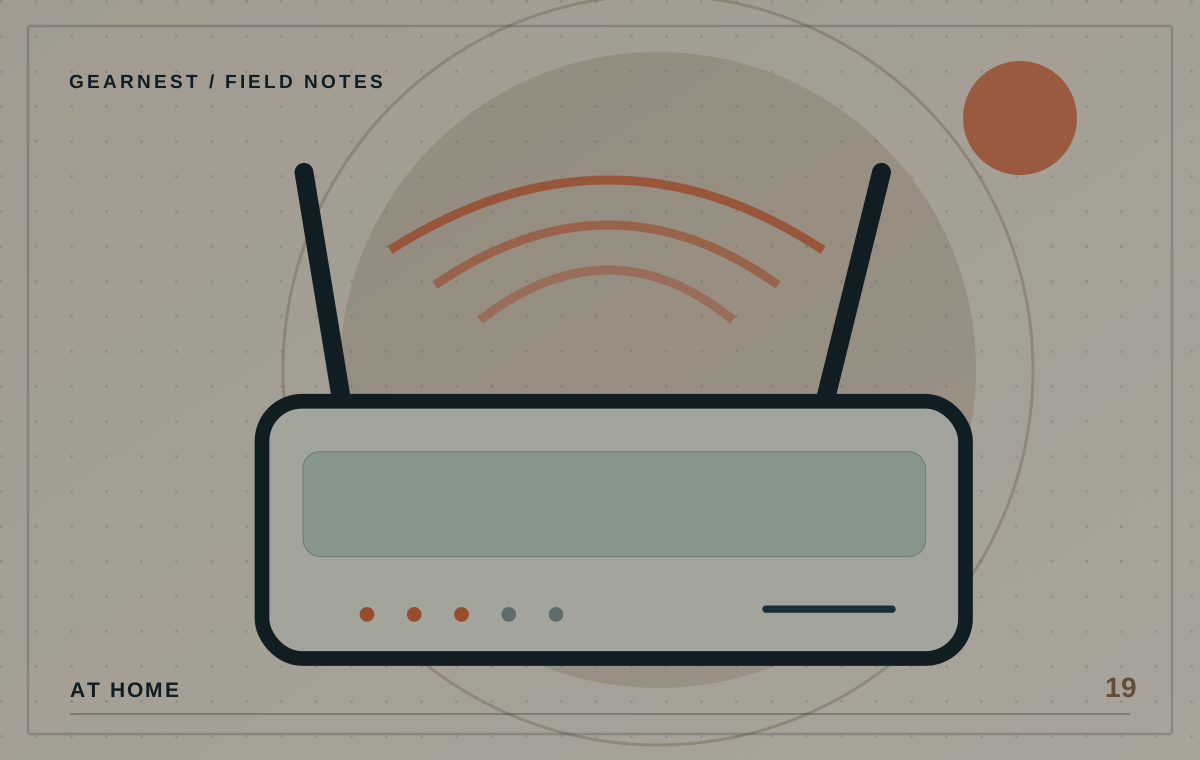
A slow room does not always mean you need a new router. Distance, walls, interference and how a device connects can make a perfectly adequate network feel patchy. Begin with a few simple observations before spending on mesh systems or repeaters.
Test placement and connection quality before replacing the router.
Start with the problem room
Identify whether the issue occurs on one device or several, at certain times or in certain places. Check a device near the router and again in the problem area, using a consistent test method. If the internet service itself is unreliable, new Wi-Fi hardware may not solve it. Record the symptoms and contact your provider if the connection is unstable at its source.
Move the router into the open
A central, reasonably elevated position with some clear space around the router is often a better starting point than a cupboard, floor corner or the back of a television cabinet. Walls, metal objects and appliances can affect radio signals. Keep the router ventilated and follow its placement instructions. Don't stretch power cords unsafely just to reach a slightly better location.
Compare bands and device capability
Different Wi-Fi bands balance range, congestion and potential speed in different ways. Your router and devices both need to support the relevant features. A device connecting on a band with better peak speeds may not deliver a better experience through several walls. Check the connection information and try a different placement before assuming a settings change is required.
Know when mesh may help
A mesh system can extend coverage across a larger or awkward home, but node placement and the connection between nodes still matter. If you can connect some network points by Ethernet, that may help certain layouts. Evaluate the actual problem rooms, available power points and costs. A bigger mesh kit is not automatically necessary for an apartment.
Keep your network maintained
Install security updates through the manufacturer's official process, use strong network and administrator passwords, and avoid leaving obsolete unsupported equipment connected indefinitely. If you reset or replace a router, document settings and provider requirements first. A practical Wi-Fi improvement should not come at the expense of basic security.
Draw a simple coverage map
Mark the rooms where your connection works reliably and those where it struggles. Repeat checks with more than one device where possible, and note whether doors or floors change the experience. If only one laptop has trouble near the router, investigate that device before buying network-wide equipment. If distant rooms are consistently affected, test a safe central position or consider suitable additional network infrastructure. The map keeps the problem specific.
Before you choose
- Check the connection in more than one room and device.
- Try a central, ventilated location before buying extra hardware.
- Confirm firmware support and network security.
Buying a mesh kit without confirming where the connection is failing.